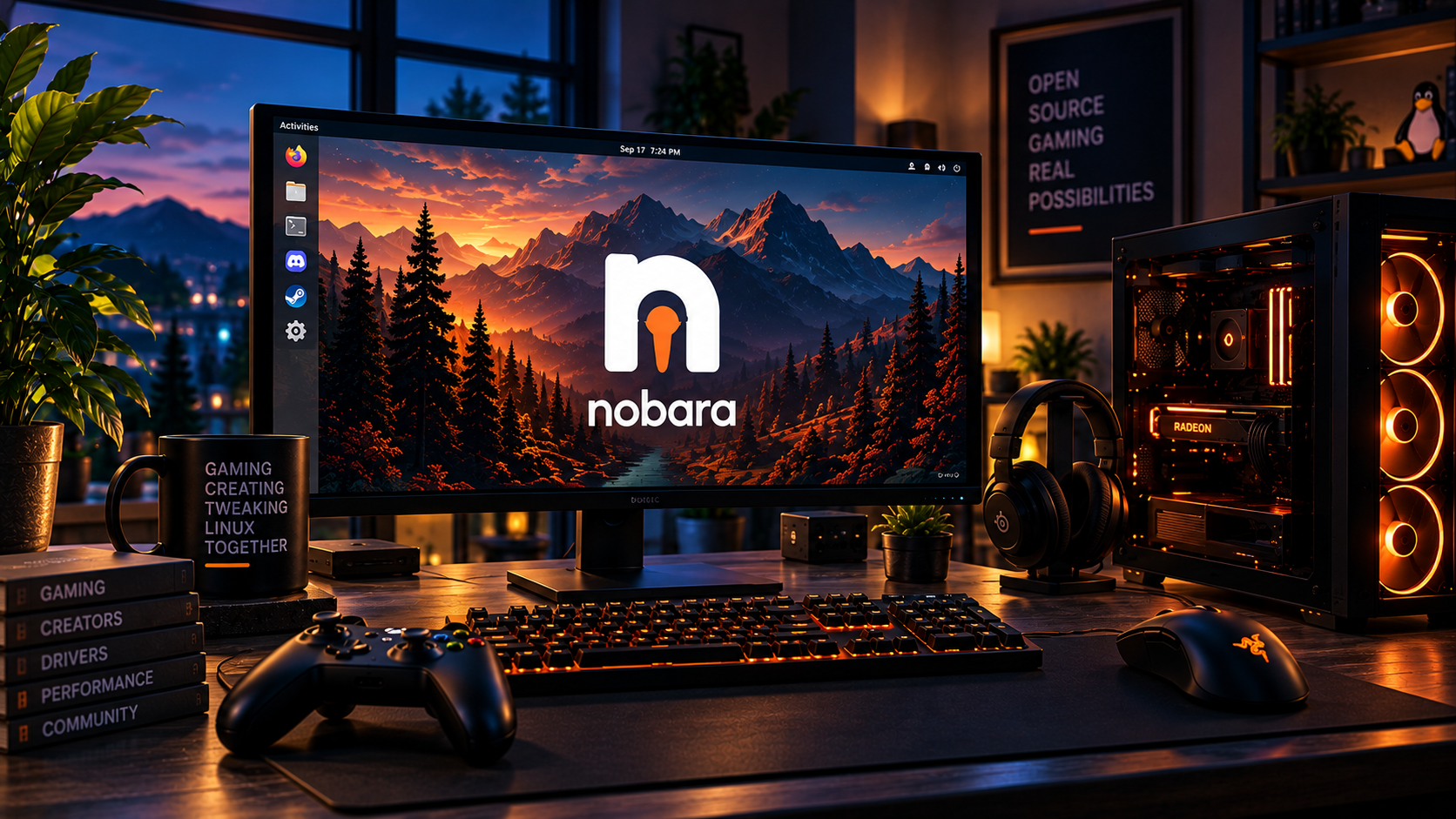
Distro Guide / Nobara
Nobara for gaming
A documentation-based look at gaming preparation, drivers, maintenance and current hardware considerations.
Key takeaways
- Check the edition and GPU against Nobara’s own installation guidance.
- Begin with the supplied gaming tools before adding optional software.
- Use the project’s updater and driver workflow; a generic Fedora tutorial may not apply.
On this page
Overview · Who this is for · How installation works · What gaming setup looks like · Desktop and creative applications · Updates and maintenance · Hardware and project changes · Strengths and tradeoffs · Next steps · Related reading
Overview
Nobara is an independent Fedora-derived project aimed at gaming, streaming and content creation. It offers a customized KDE Official edition, regular KDE, GNOME, Steam-HTPC and Steam-Handheld variants. “Official” here names a Nobara edition; it does not mean official Fedora affiliation. Project overview
Who this is for
Consider Nobara if you want a conventional desktop with gaming preparation and are willing to follow its own maintenance tools. Its base system uses packages; additional applications can use the project’s recommended native or Flatpak routes. Evaluate handheld and living-room editions separately from desktop installation.
How installation works
The download page reviewed for this guide lists Nobara 44 images dated 2 September 2026. The images now cover standard and NVIDIA installations, rather than requiring a separate NVIDIA ISO. Current instructions use UEFI and disable Secure Boot. Official downloads
Match the image and driver choices to the actual GPU. The new-user guide excludes Pascal-generation and older NVIDIA cards from current driver support and discourages same-disk Windows dual boot. Read that as project installation guidance, not a universal rule about what EFI can do. New-user guide
Complete the migration checklist before disk changes. A graphical installer reduces typing; it does not decide which partitions are safe to erase. Keep recovery media and backups available independently of the drive being changed.
What gaming setup looks like
The guide lists Steam, Lutris, Gamescope, GameMode, MangoHud, GOverlay, umu-launcher and ProtonPlus as supplied. GE-Proton can be installed through ProtonPlus. Stable AMD/Intel Vulkan drivers are supplied; optional development versions of the graphics stack and some controller additions can be installed separately. Use Nobara’s recommended update and driver workflows. New-user guide
Begin with Steam and a game you have already checked for compatibility. MangoHud displays performance information; it is not a required first step. Add another launcher only when a game or store requires it. See Understanding Proton before changing compatibility versions without a specific reason.
Desktop and creative applications
KDE and GNOME provide desktops for ordinary applications alongside gaming. Nobara’s Welcome application offers recommended additions, including native OBS packages for recording and streaming. Its codec prompt handles additional media support. Check what your chosen image already supplies before installing another copy. Application guidance
Updates and maintenance
Use Nobara’s own updater to keep the system’s packages and repositories in sync. It handles project-specific changes that a generic Fedora update command may miss. The current update guide also documents a Flatpak update option; check that separately installed applications are included in your update routine. Updating Nobara
The updater can move an individual package back to a version chosen by the project. That is different from restoring a complete OS deployment or personal files. Keep a separate backup and recovery plan; do not assume package synchronization provides Bazzite-style system rollback. Updater behavior
Hardware and project changes
Nobara documents a CachyOS-derived kernel with additional device and gaming-related changes. These implementation choices do not establish a frame-rate advantage for every machine. Kernel changes
Check laptop graphics switching, wireless controllers, audio and handheld controls by exact model. Use the Hardware checklist to distinguish basic operation from extra features such as vendor control software.
Strengths and tradeoffs
Our assessment: Nobara is a useful candidate for a prepared gaming desktop that also supports creative applications. The tradeoff is following the project’s driver, update and release guidance instead of treating it as an interchangeable Fedora installation.
Next steps
Compare the five distro approaches, then use the Setup Guide. Research basis: official documentation reviewed on 18–19 September 2026, not GamingLinux benchmark or hardware testing.
Related reading
- Compare the five distro approaches — choose by preparation, maintenance and hardware needs.
- Check your essential games — verify the store, modes and current evidence.
- Set up your first game — work through updates, graphics, Steam and peripherals.